Scale Elements
Advanced element scaling tool with bounding box analysis, geometric transformation, and DirectShape creation for scaled duplicates.
Scale Elements Video Demonstration
Watch the Scale Elements Dynamo script in action, demonstrating advanced element scaling capabilities with geometric transformation.
Project Overview
This Dynamo script provides advanced element scaling capabilities for Revit elements, enabling designers to create scaled duplicates while maintaining geometric integrity. The tool analyzes element bounding boxes, performs geometric transformations, and creates new DirectShape elements with the scaled geometry.
The script is particularly useful for creating scaled versions of complex elements, testing different sizes, and generating multiple variations of architectural components. It handles various element types and maintains proper geometric relationships during the scaling process.
Key Features
- Bounding Box Analysis: Calculates element dimensions and center points
- Scaling Factor Control: User-defined scaling ratios for precise control
- Geometric Transformation: Advanced geometry scaling algorithms
- DirectShape Creation: Generates new elements with scaled geometry
- Category Assignment: Maintains proper element categorization
- Center Point Calculation: Accurate scaling around element centers
Technical Implementation
- Element.Geometry: Extracts geometry from selected elements
- BoundingBox.ByGeometry: Calculates element boundaries
- BoundingBox.MinPoint/MaxPoint: Determines scaling reference points
- Geometry.Translate: Positions scaled geometry correctly
- Geometry.Scale: Performs geometric scaling transformation
- DirectShape.ByGeometry: Creates new scaled elements
Technical Specifications
Workflow Process
- Select target elements using Dynamo Player
- Extract element geometry using Element.Geometry
- Calculate bounding box using BoundingBox.ByGeometry
- Determine center point from MinPoint and MaxPoint
- Apply scaling factor to geometry
- Translate geometry to correct position
- Create DirectShape with scaled geometry
- Assign proper category and naming
Key Dynamo Nodes
- Select Model Elements: Element selection interface
- Element.Geometry: Geometry extraction
- BoundingBox.ByGeometry: Boundary calculation
- BoundingBox.MinPoint: Minimum boundary point
- BoundingBox.MaxPoint: Maximum boundary point
- Geometry.Translate: Position transformation
- Geometry.Scale: Scaling transformation
- DirectShape.ByGeometry: Scaled element creation
Use Cases
Design Variations
Create scaled versions of architectural elements for design exploration
Size Testing
Test different element sizes without modifying original geometry
Component Scaling
Scale complex architectural components while maintaining proportions
Project Impact
Time Reduction
Automated scaling eliminates manual geometric reconstruction
Accuracy
Precise geometric scaling maintains element proportions
Versatility
Handles elements of any complexity and geometry type
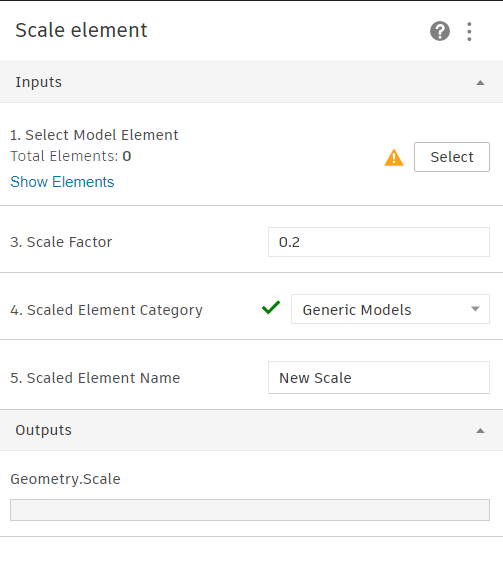
Dynamo Player Interface
User interface for element selection, scaling factor input, and output element naming and categorization.
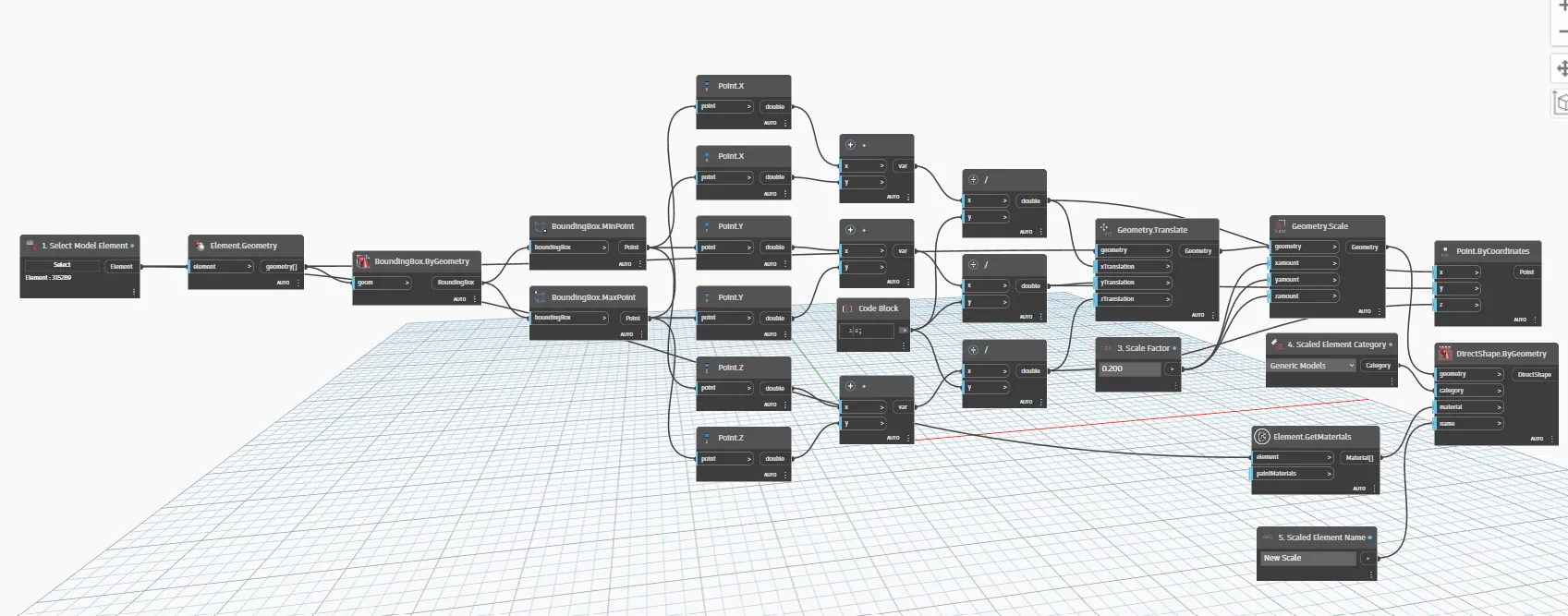
Geometry Extraction
Element geometry extraction and bounding box calculation workflow for scaling preparation.
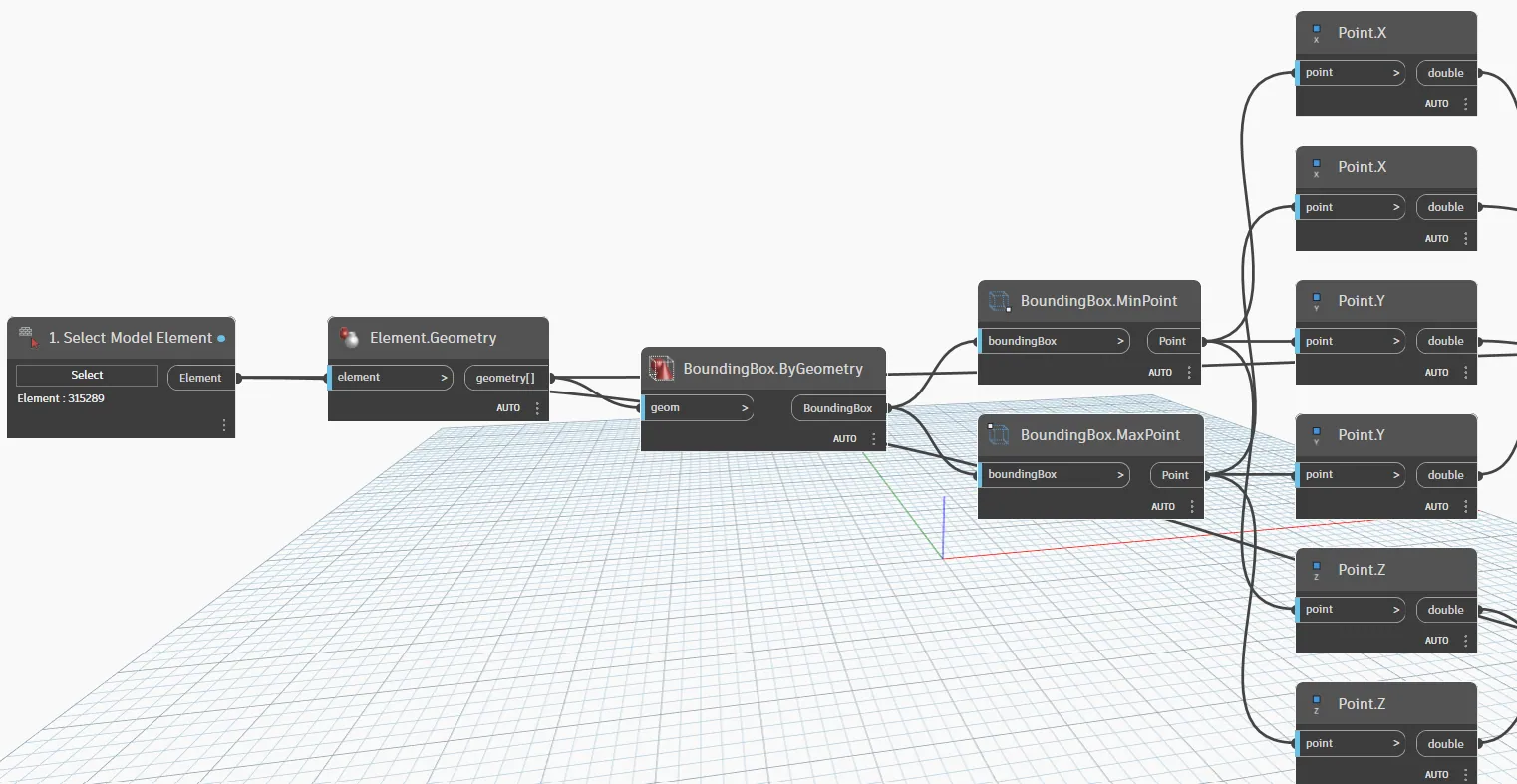
Scaling Algorithm
Advanced scaling algorithm showing center point calculation and geometric transformation logic.
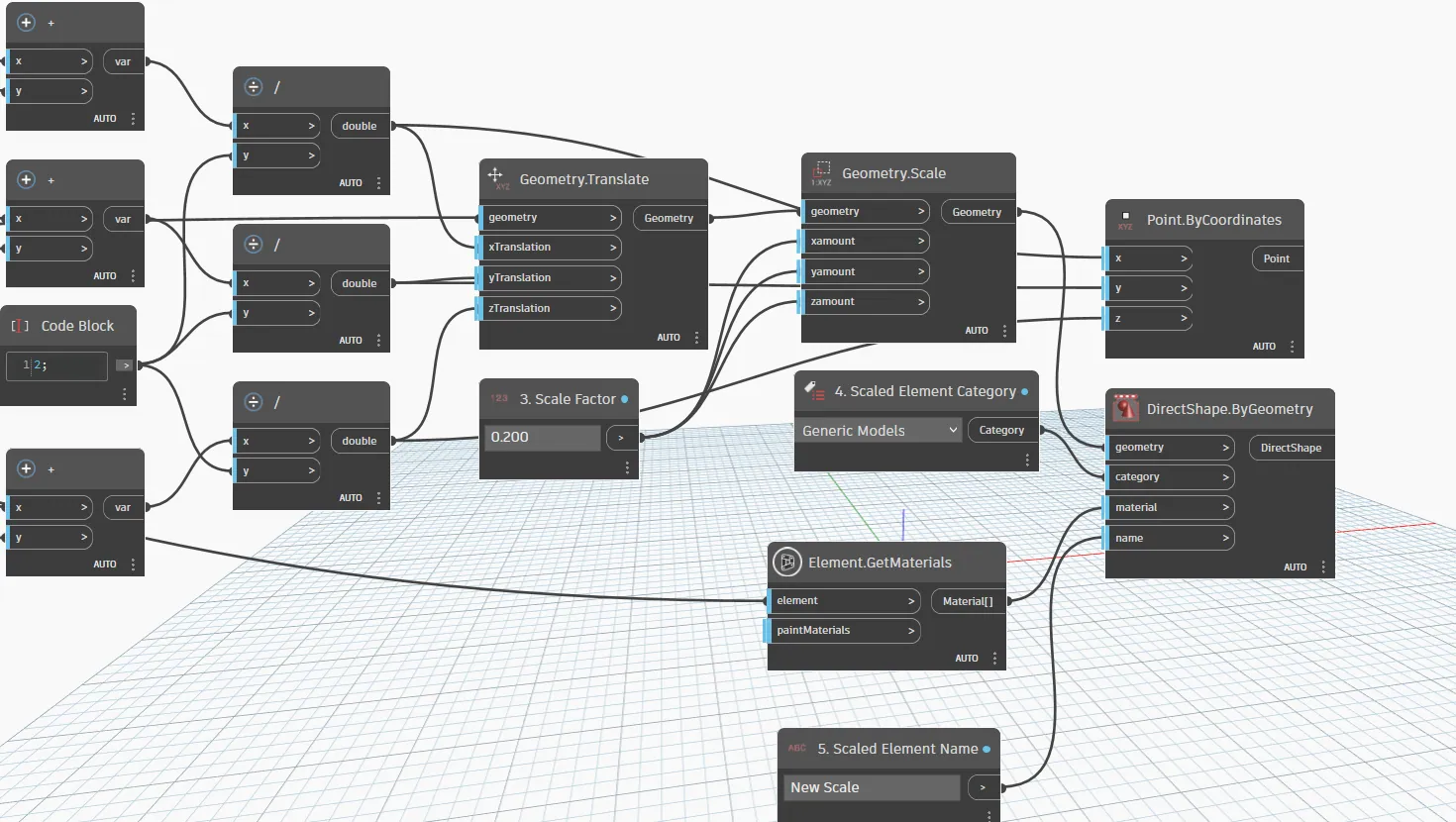
DirectShape Creation
Final step showing DirectShape creation with scaled geometry and proper category assignment.